Auto-Clipping Videos in Kaiber Beat Sync
This guide covers how to use Auto-Clip to turn long videos into short, ready-to-use clips for your Kaiber Beat Sync projects.
Written By Christine Larsen
Last updated 4 months ago
What Auto-Clip Video does
Auto-Clip Video is designed for turning long-form content into short clips. It analyzes the video and identifies the cuts between shots, turning each shot into its own clip.
The process takes a couple of minutes. Once it's done, the clips are ready to use to create batches of beat-synced videos, and can be exported as standalone clips.
Popular use cases
Music video promo reels: Auto-clip music videos and create whole campaigns with Kaiber Beat Sync to promote a song or an artist.
Behind-the-scenes reels: Clip a BTS video and remix into batches of reels and shorts.
Fan account content: Auto-clip and remix footage into post-ready videos.
Concert footage: Auto-clip a performance to create video batches of content for promo accounts and fan pages.
Music videos: pull standout moments from any video and beat sync with a track to create a music video.
Podcasts and interviews: extract quotable moments from long-form recordings.
Live streams: pick highlights from streams.
Auto-Clip a video
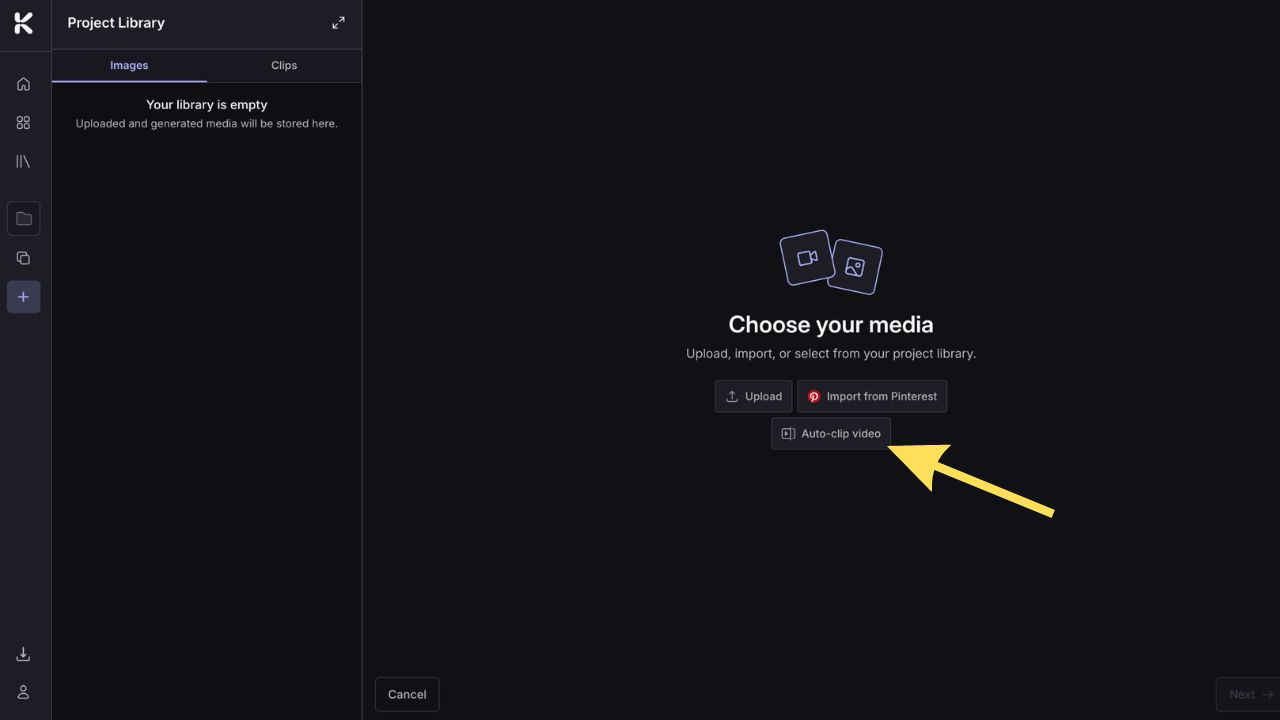
Create a project and click the + in a blank video tile to choose your media, and select Auto-clip video.
Upload one or more videos from your device.
Wait a couple of minutes while Auto-Clip processes the videos and extracts clips.
Click on a processed video to view its clips.
Click to select the clips you want to keep.
Click Import to add them to your Media Library.
The selected clips are added to your Media Library and auto-selected for your batch. Refine your selection, add your music, select the number of videos in the batch and click Generate.
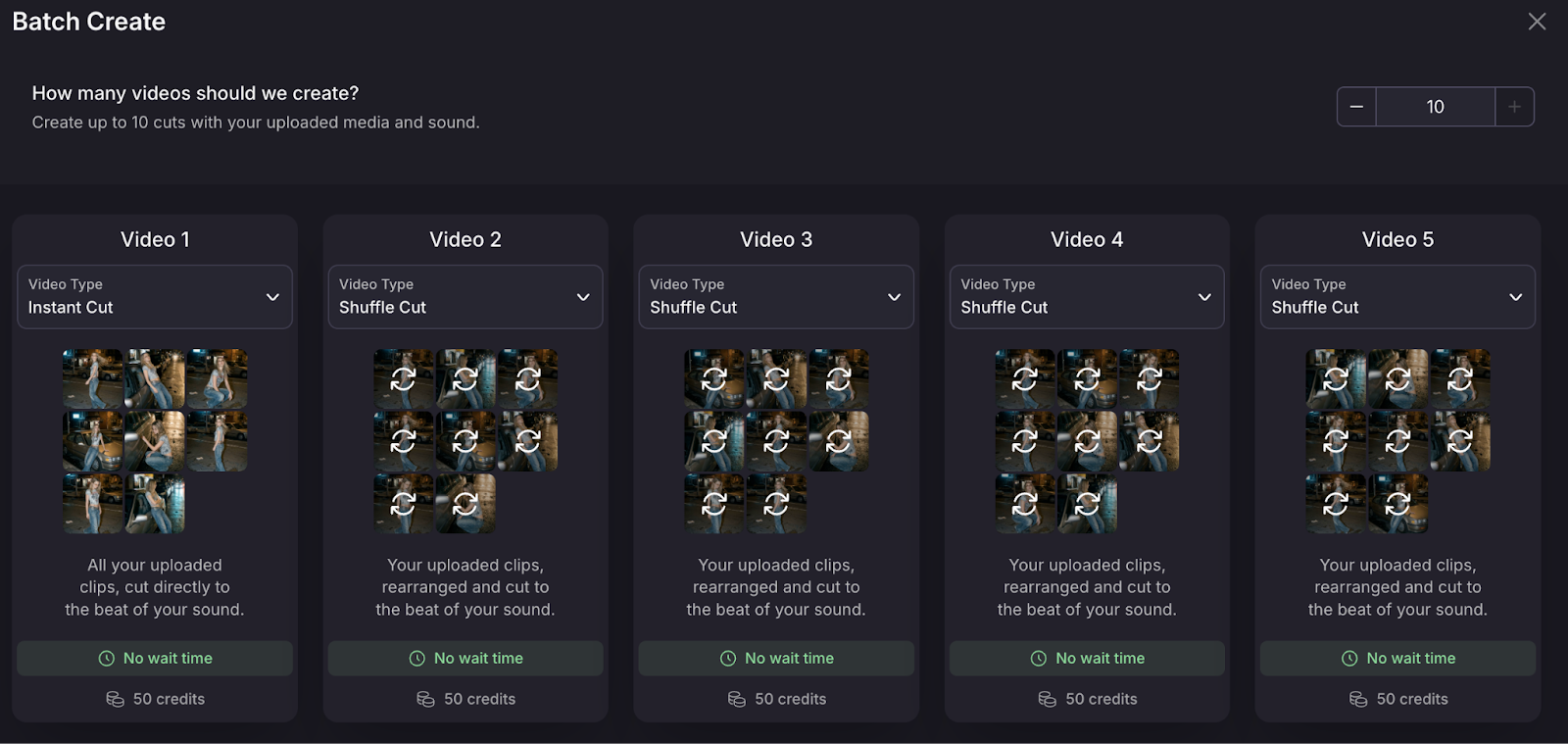
Beat Sync will use the selected clips to create:
Instant Cut videos: All your uploaded clips, cut directly to the beat of your sound.
Shuffle Cut videos: Your uploaded clips, rearranged and cut to the beat of your sound.
Videos are generated instantly, with no wait time.
Click on a video to preview it, and open in Edit mode to refine them. In edit you can add auto-generated lyrics or captions, re-sequence clips, adjust beat-sync timing, change transitions, or re-trim individual clips.
Your imported clips are stored in your Media Library, so you can use them in future batches without re-uploading or re-clipping.
Tips for best results
Use high-quality source videos. The better the input, the better the clips.
Pick videos with movement and energy. Action, camera movement, and visual variety give better results than static shots.
Videos with clean cuts between shots give cleaner results than ones with blur and fade style transitions.
Review before importing. Skip the clips that you don’t need so they don't clutter your library. If you’re not sure, import. You can always delete unwanted clips later on.
FAQs
How long does auto-clipping take?
How long does auto-clipping take?
A couple of minutes, depending on the length of the video. You can upload multiple videos at once and they will be auto-clipped at the same time.
What video formats work with Auto-Clip?
What video formats work with Auto-Clip?
Upload videos as MP4 or MOV files.
Can I adjust the clip length?
Can I adjust the clip length?
Yes. Auto-Clip cuts on natural scene changes automatically. If you want to refine a specific clip, trim it manually in Edit mode after generating your videos.
How many clips does Auto-Clip create from one video?
How many clips does Auto-Clip create from one video?
It depends on the length and content of the source. Videos with more scene changes will create more shorter clips than videos with fewer cuts between shots.
What happens to the original video after auto-clipping?
What happens to the original video after auto-clipping?
The original isn't saved to your project. Only the clips you select and import are added to your Media Library. If you want to keep the full video, save it on your device.
Can I delete clips from the library after importing?
Can I delete clips from the library after importing?
Yes. Click on on or more clips in the Media Library to select them, then and click delete
How do I access Auto-Clip Video?
How do I access Auto-Clip Video?
Auto-Clip Video requires a Pro Plan. It's included with your subscription and doesn't cost credits.
Still need help? Ask the team