Exploring Batch Create and Video Types in Kaiber Beat Sync
This guide covers the settings that shape your batch in Kaiber Beat Sync : aspect ratio, batch size, and the video types you'll get based on the media you've selected.
Written By Christine Larsen
Last updated 4 months ago
Once you've selected your media and added and trimmed your sound, you're ready to set up your batch and generate. Here's what each setting does and what to expect.
Aspect ratio
After selecting the media for your batch click next to select the aspect ratio. All videos in a batch generate at the same aspect ratio.
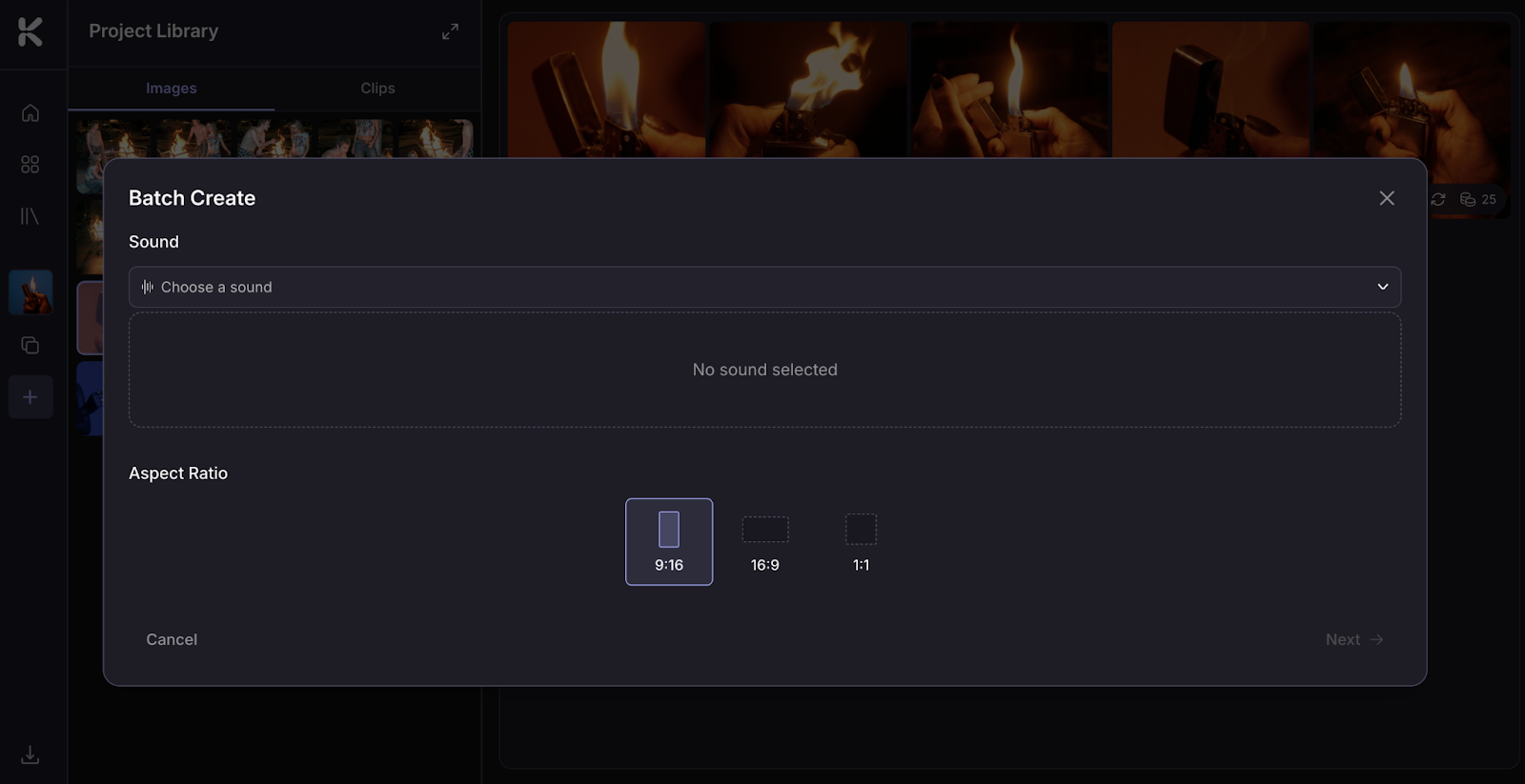
Choose between:
9:16 vertical: TikTok, Instagram Reels, YouTube Shorts
16:9 landscape: YouTube, desktop viewing
1:1 square: Instagram feed
You can adjust the aspect ratio of individual videos after generating, in Edit. This crops the video to match the chosen aspect ratio.
How aspect ratio affects each video type:
Instant Cut and Shuffle Cut use your media as-is and crop it to fit the aspect ratio. For best results, pick an aspect ratio that matches your source media.
Motion Cut and Scene Cut generate new clips in the aspect ratio you choose.
Exporting in a different aspect ratio to what you generated will crop the video to match the chosen aspect ratio.
Batch size
The number of videos you can generate in a single batch depends on your plan:
Creator Plan: up to 2 videos per batch (default 2).
Pro Plan: up to 10 videos per batch (default 5).
Use the box in the top right corner to set the number.
Batch size doesn't affect generation time. Creating 10 videos takes the same amount of time as creating 5.
Video types
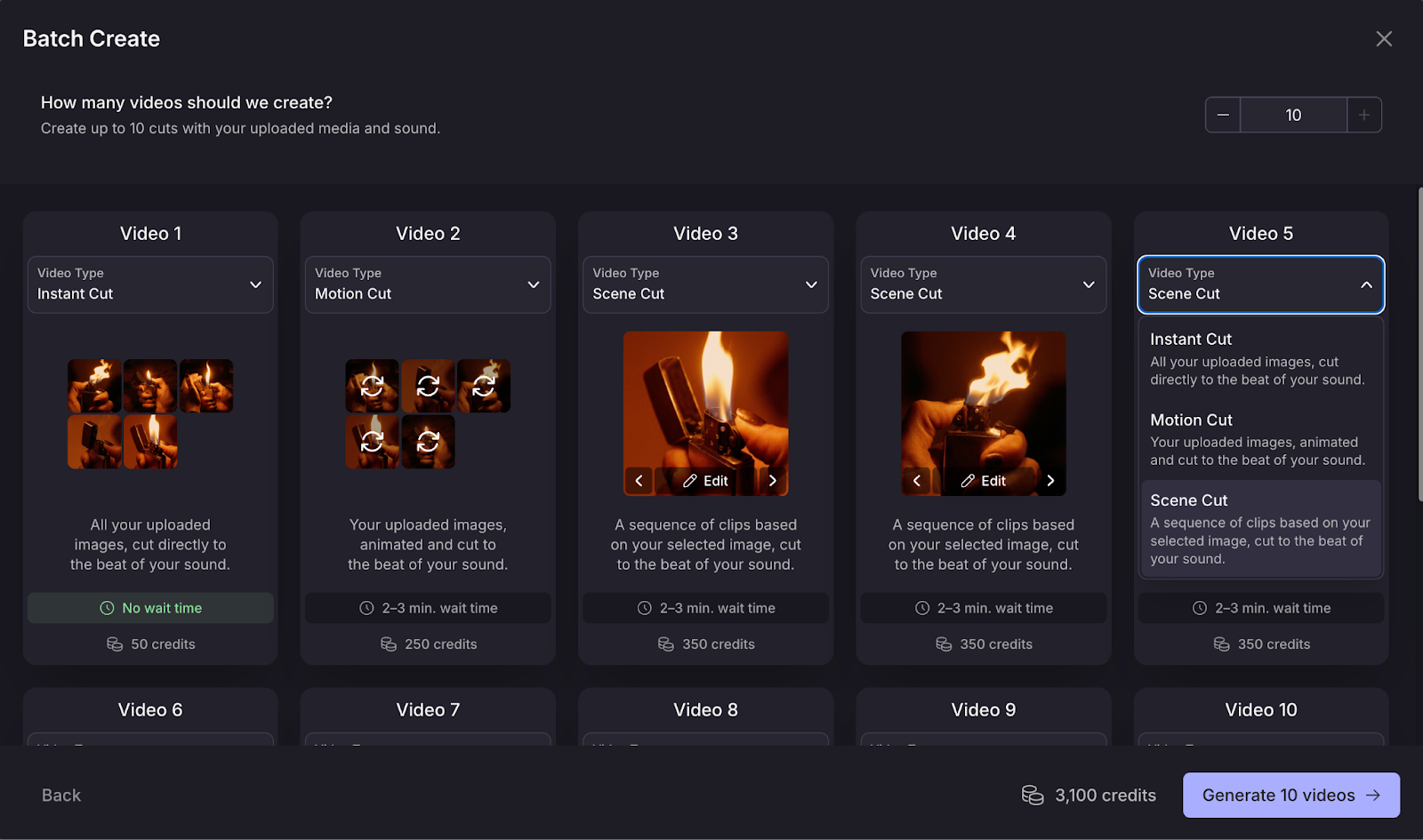
Beat Sync generates four types of beat-synced videos. The types you'll get in your batch depend on the media you've selected. Click on Video Type in the video card to change the type of video.
Instant Cut: your media, cut to the beat in the order you uploaded it. No wait time.
Shuffle Cut: your clips rearranged and cut to the beat. No wait time.
Motion Cut: animated versions of your images, cut to the beat.
Scene Cut: a sequence of AI-generated clips inspired by a single image, cut to the beat. To change the image use the Edit button on the image in the card.
Video types based on your media selection
When you reach the Batch Create screen, each video card shows the video type Beat Sync has chosen for it by default. Beat Sync picks the best mix based on the type and number of media you have selected, and the size of your batch.
Based on what type of media you selection you will see:
Clips only: Instant Cut and Shuffle Cut
Images only: Instant Cut, Motion Cut, and Scene Cut
Mixed clips and images: Instant Cut and Motion Cut
If you have fewer than 5 media items selected, Beat Sync will default to the video types that work best with the media you have. You can still manually switch any card to a different type via the chevron on the video type dropdown, but you'll see a banner suggesting at least 5 images or clips for best results.
Each Scene Cut is built from a single image. Use the Edit arrows on the card to scroll through your selection and choose which one.
Generate your batch of videos
Once your settings are in, click Generate on the bottom right. Your videos are created and saved to the Project Page.
Generation time depends on the video type:
Instant Cut and Shuffle Cut: generate instantly, since they're built from your existing media.
Motion Cut and Scene Cut: take a couple of minutes, since the clips need to be generated first and then synced to your sound.
Click Preview on any video to watch it. Use the arrows to scroll through other videos in the project.
FAQs
How many videos should I create in a batch?
How many videos should I create in a batch?
You can create anywhere between 1 and 10 videos in a batch. It's up to you. If you're creating content for multiple posts or testing variations, go for a higher number. If you want to refine a single idea, dial in the right sound, or experiment to find the right look, start with a smaller number of videos in a batch. The default batch size is 5 for Pro plans and 2 for Creator plans, and you can adjust this before generating.
Can I create videos from just one image?
Can I create videos from just one image?
Yes. Scene Cut videos are built from a single image, so one image is enough to generate a full batch of them up to your plan's limit.
If you want more variety to work with before generating, use Generate Similar on your image to create variations.
Can I create another batch while one is generating?
Can I create another batch while one is generating?
Yes. Click the + button on your Project Page to start a new batch.
What's the difference between Motion Cut and Scene Cut?
What's the difference between Motion Cut and Scene Cut?
Both generate new clips from your images, but they work differently. Motion Cut animates each of your selected images and cuts them to the beat, so you'll see all your images in the final video. Scene Cut picks one image and generates a sequence of fresh clips inspired by it, so the final video is built from new visuals rather than your original selection.
Why are some video types not showing?
Why are some video types not showing?
Beat Sync only offers the video types that work with your selection. Shuffle Cut needs clips, Motion Cut and Scene Cut work with images, and Instant Cut works with both. With fewer than 5 items, the options narrow to what works at smaller selections. If you're not seeing the type you want, check both the type and number of media in your selection.
Can I change the video types on a batch of videos?
Can I change the video types on a batch of videos?
Yes. Click the chevron on any video card's video type dropdown to swap it for a different one. You can mix and match across cards in the same batch, so one batch can produce a few different video types at once.
How long does generation take?
How long does generation take?
It depends on the video type. Instant Cut and Shuffle Cut are ready instantly, since they're built from your existing media. Motion Cut and Scene Cut can take a couple of minutes, as the clips need to be generated.
Still need help? Ask the team