Downloading From Kaiber Beat Sync
This guide covers how to download your videos and media from Kaiber Beat Sync.
Written By Christine Larsen
Last updated 4 months ago
Download a single video
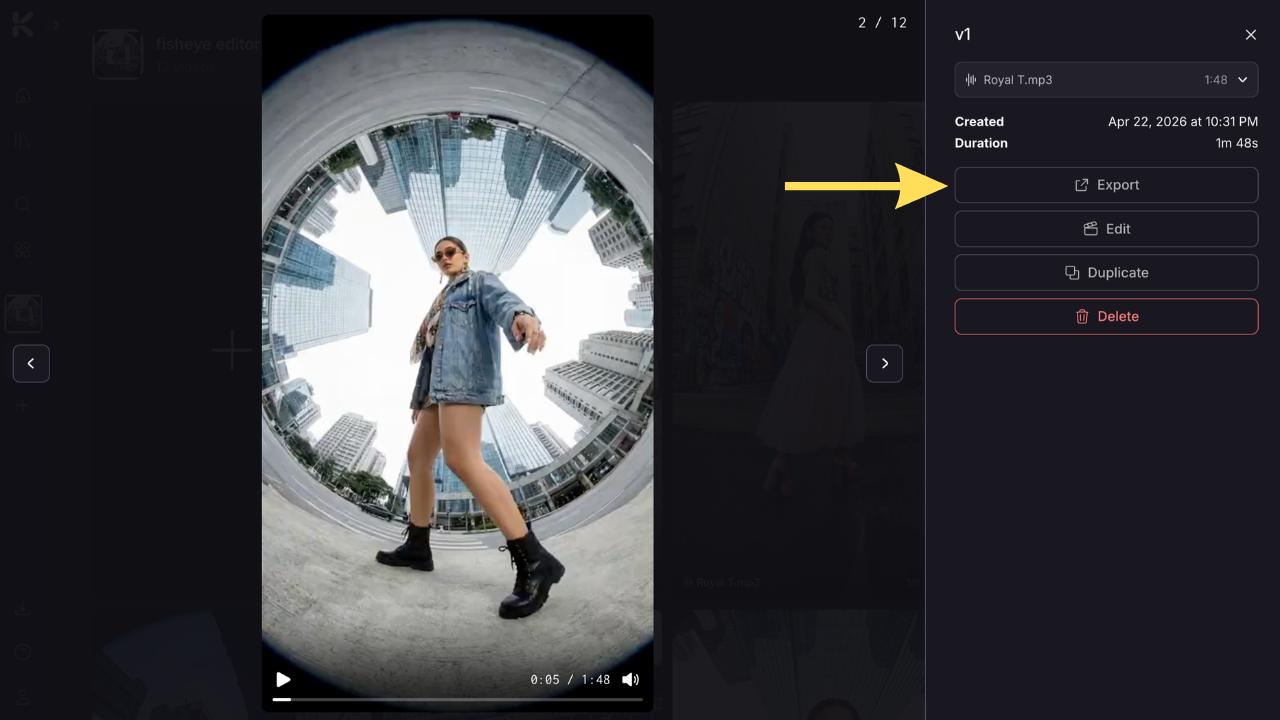
Click on your video to open it in Preview, then click Export on the right. The video saves straight to your device.
To export from the Edit screen, click Export in the top right.
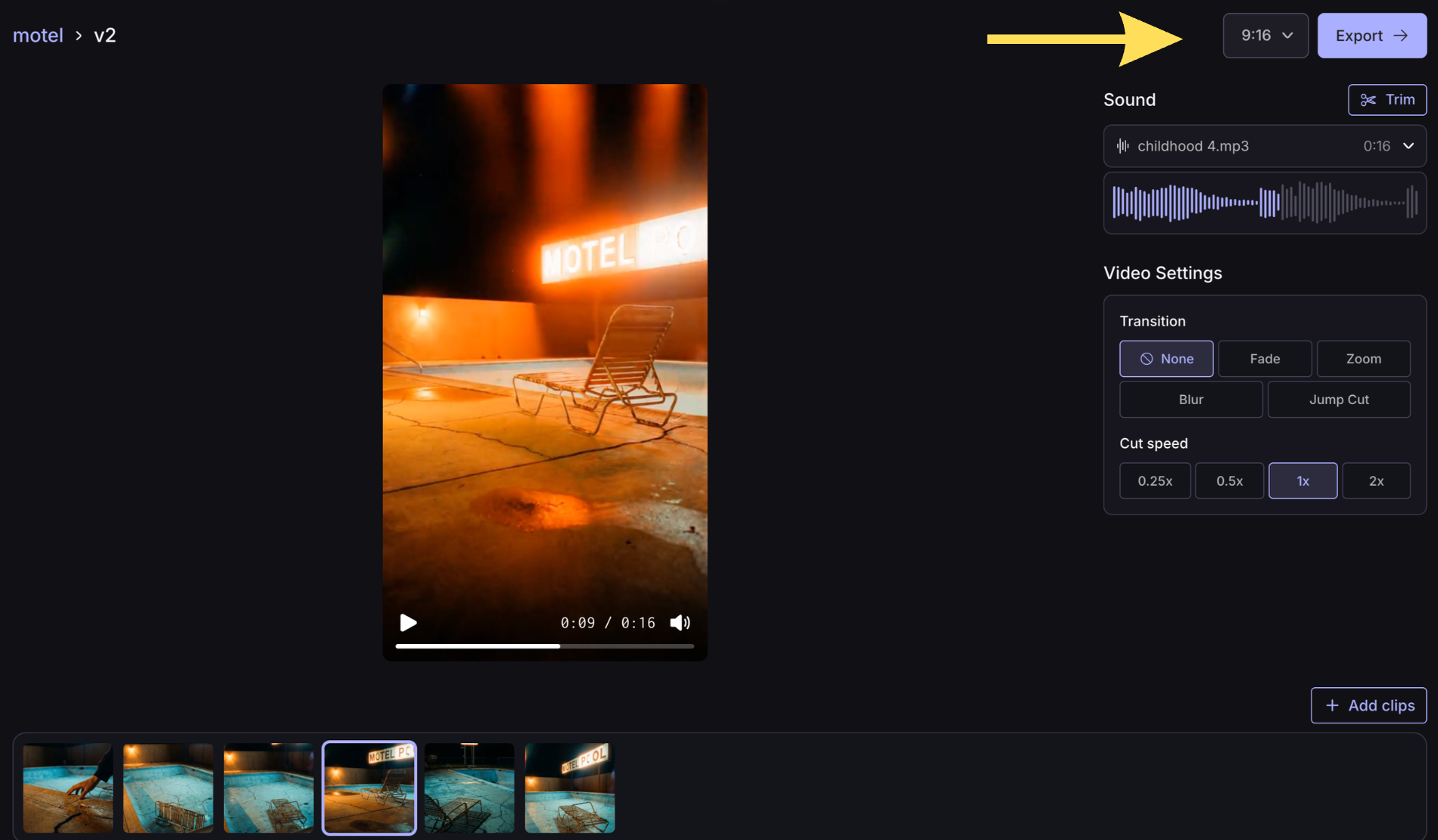
To change the aspect ratio before exporting, use the aspect ratio selector in Edit mode.
The three aspect ratio options are:
9:16 vertical
16:9 landscape
1:1 square
Exporting in a different aspect ratio to what you generated will crop the video to match.
Batch export videos from the Project Page
To export multiple videos at once, go to the Project Page and click the Select button in the top right. Then click Select All to grab every video in the project, or click individual videos to choose specific ones
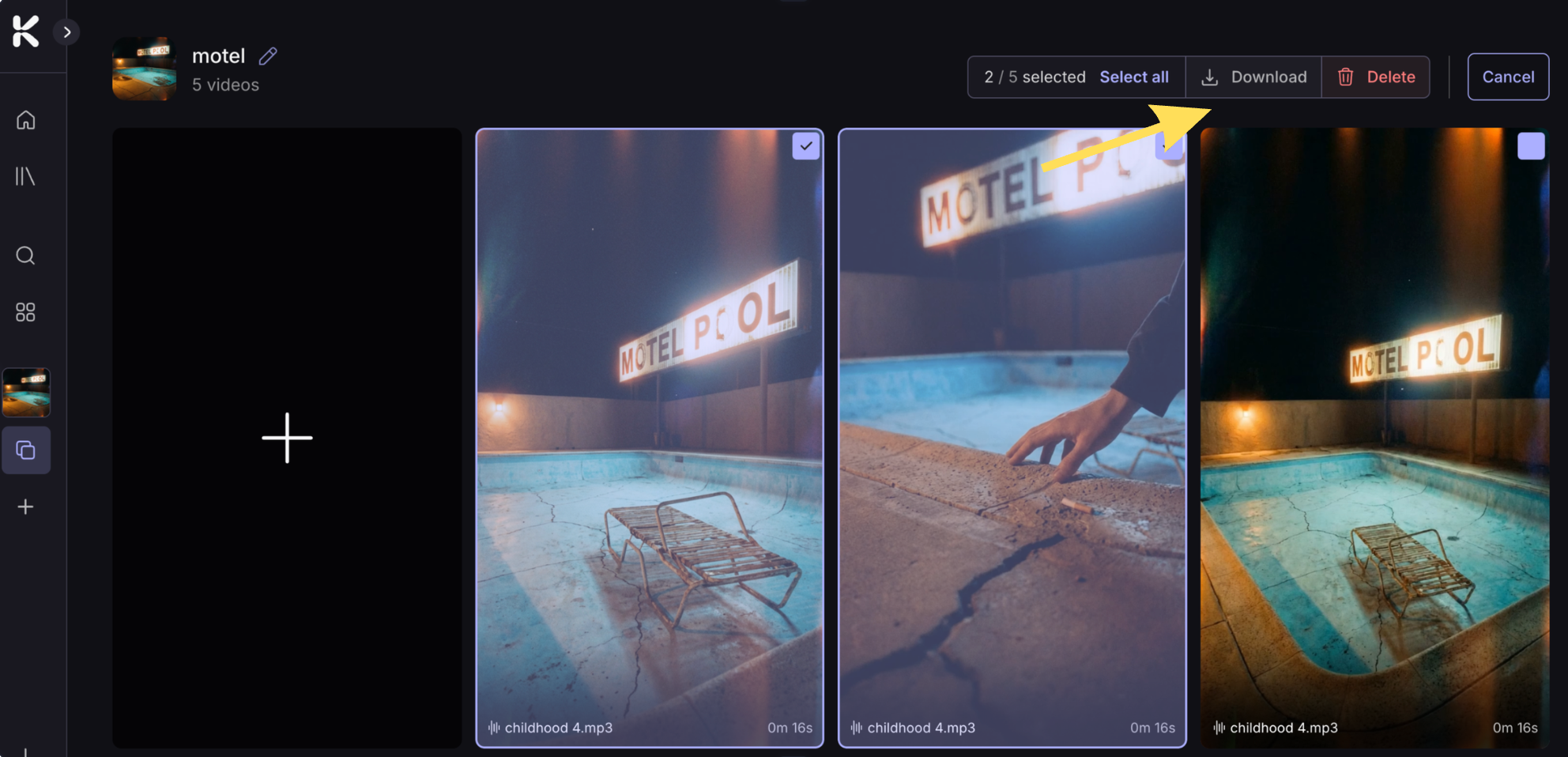
Click the download button. Your videos are bundled as a ZIP file and added to the export queue. Click on the bottom left to check your exports and download.
Export clips and images
To export media from your project, click to select clips or images in the Media Library, then select Export from the dropdown menu.
To batch export multiple items, click on more clips or images to add to your selection, then click Export. Like batch video exports, these go to the Export Queue as a ZIP file.
The Export Queue
Batch exports go through the Export Queue while your files process. Click Export Queue in the left navigation to see what's processing and what's ready.
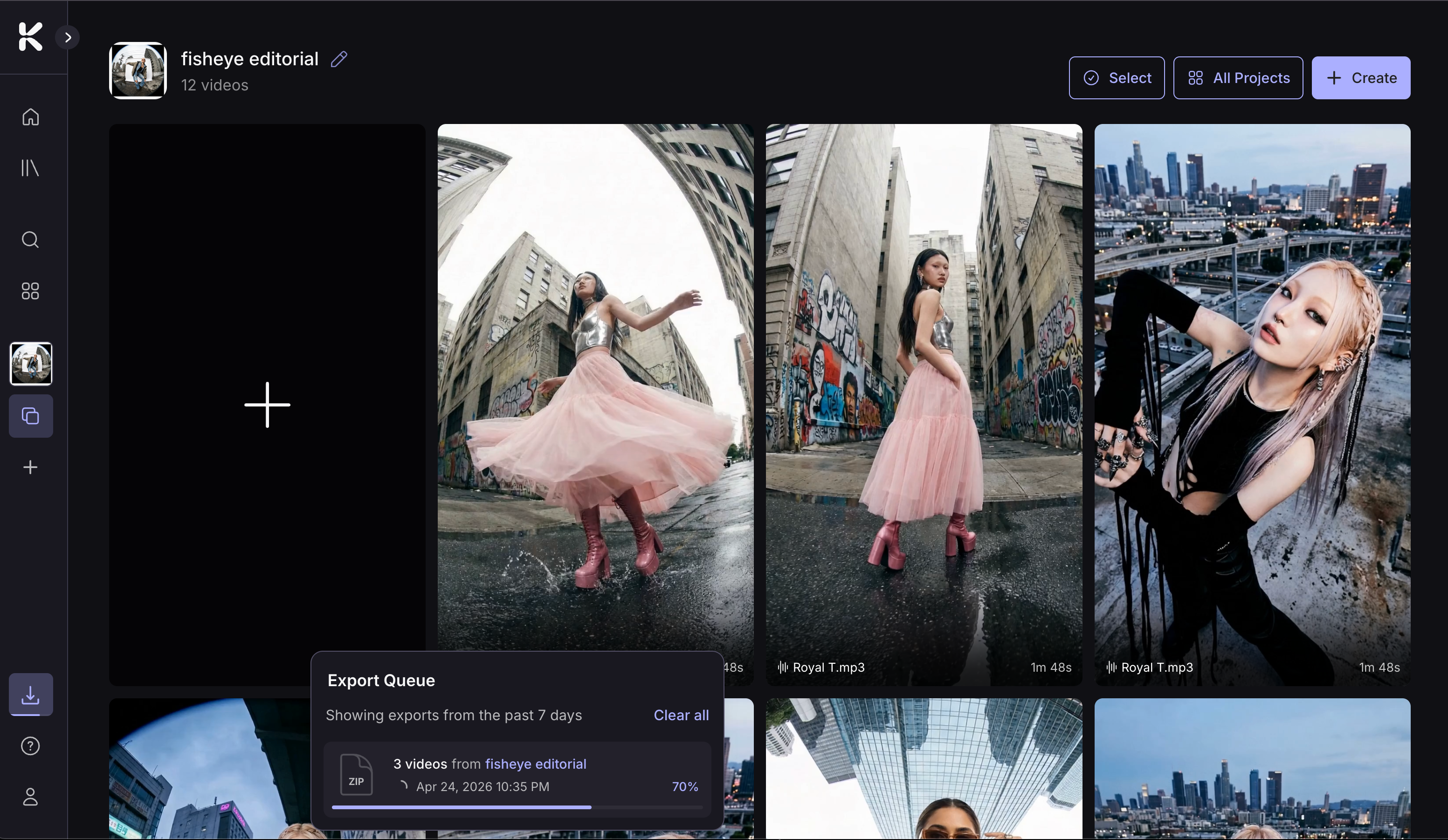
When an export in the queue is ready, click the download icon to save it to your device. Exports stay in the queue for 7 days, so you've got time to grab them later if you need to.
FAQs
Does downloading videos cost credits?
Does downloading videos cost credits?
No, downloading is free. Credits are only used when you generate.
What format are exported files?
What format are exported files?
Videos export as MP4 files and images export as PNG files. Batch exports are bundled in a ZIP file.
Where do downloaded files go?
Where do downloaded files go?
Your device's default download folder. Usually Downloads on Mac or PC.
Can I export the same video in different aspect ratios?
Can I export the same video in different aspect ratios?
Yes. Open your video in Edit, there you can change the aspect ratio and export. This is useful if you’re posting the same video across multiple platforms.
How long do exports stay in the queue?
How long do exports stay in the queue?
All your exports will be available to download for 7 days. After that, you'll need to re-export.
Do I need to export my media to work on them in Canvas and Editor?
Do I need to export my media to work on them in Canvas and Editor?
No. Select the images and videos from the Media Library and select Add to Canvas or Add to Editor Timeline. This will add the selected clips to Canvas or Editor. If you want to add more media from your project while working in Canvas or Editor, click Media Library in the toolbar on the left, to select and add in more media.
Still need help? Ask the team