Editing Your Kaiber Beat Sync Videos
This guide covers the edit features in Kaiber Beat Sync. Rearrange clips, swap your sound, add lyrics or captions, and adjust the timing, so your video is ready to post the moment you export.
Written By Christine Larsen
Last updated 4 months ago
Once you have generated a batch of videos in Beat Sync, click any video on the Project Page to preview it. Click Edit to open the video in Edit mode.
Visual Edits
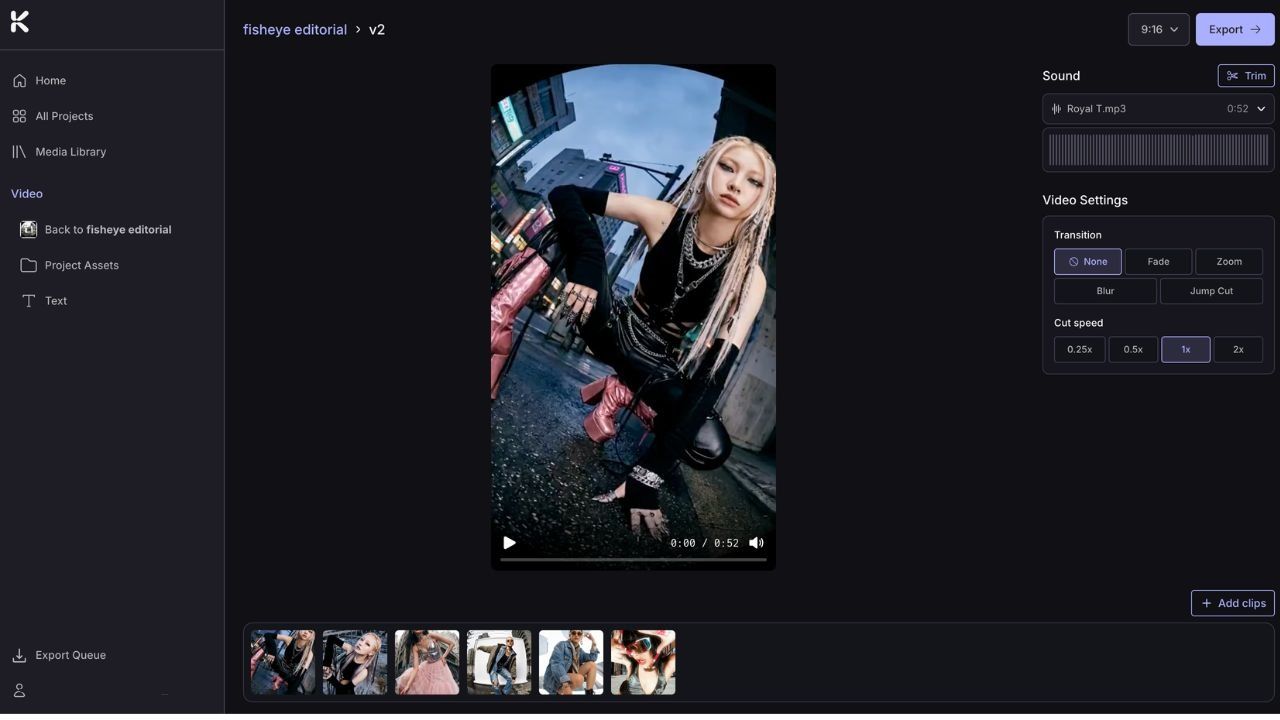
Edit mode gives you control over the order, trim, transitions, and cut speed of the clips in your video.
Rearrange clips
Drag and drop clips at the bottom of the screen to change the order.
Trim clips

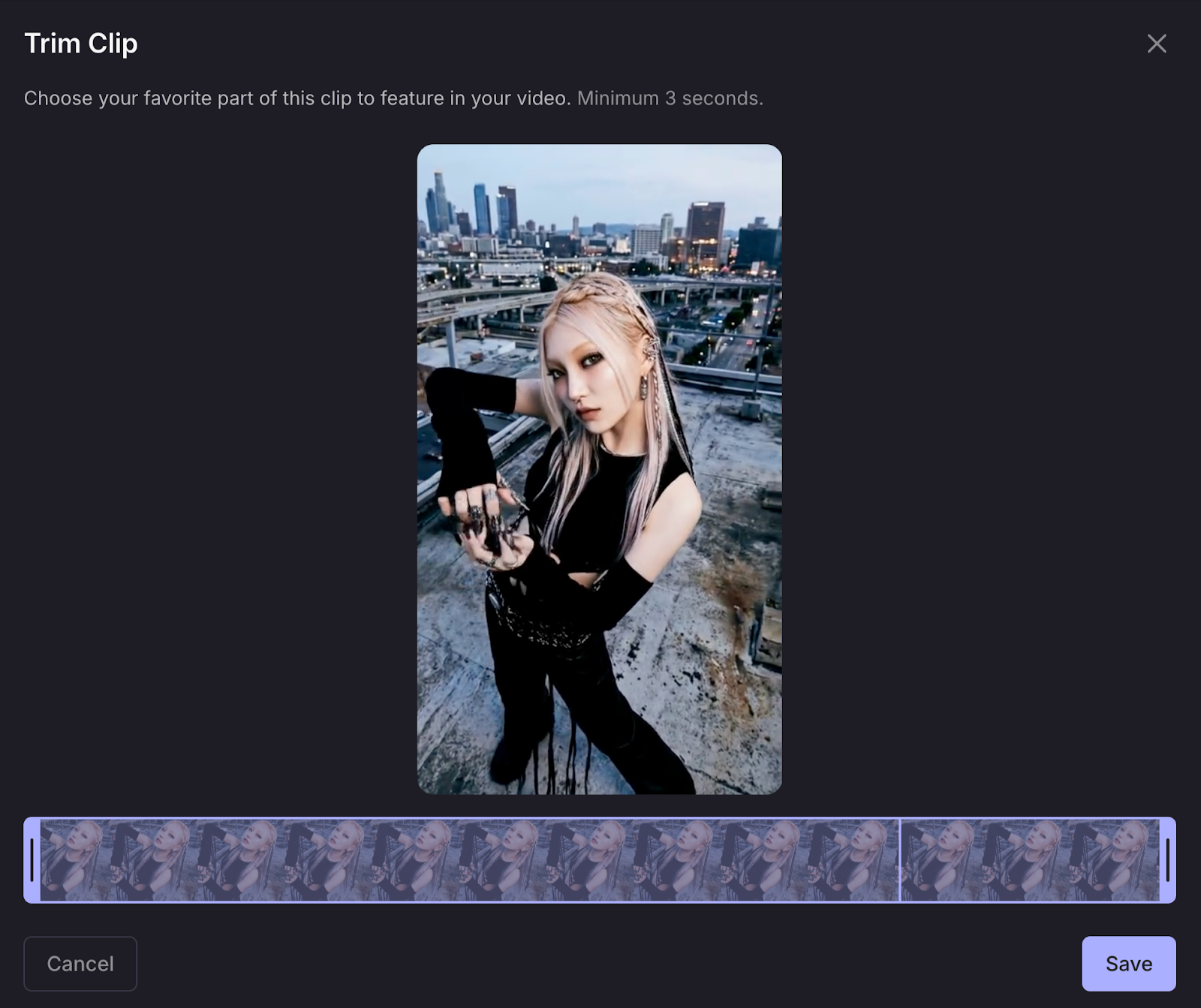
Hover over a clip and click Edit to open it and adjust the trim. Choose the exact moment you want the clip to start.
Delete clips
Hover over a clip and click Delete. The video timing adjusts automatically.
Transitions
Transitions control how one clip moves into the next. Pick from:
None: hard cuts between clips
Fade: smooth crossfade
Zoom: zoom in to the next clip
Blur: blur transition between clips
Jump Cut: quick cuts between clips
Match your transition to the energy of your sound. Hard cuts suit aggressive or cinematic tracks. Fades work for smoother, melodic songs. Zooms and Jump Cuts add energy.
Cut speed
Cut speed controls how often clips change relative to the beat:
0.25x: one cut every 4 beats (slow, cinematic)
0.5x: one cut every 2 beats (medium-slow)
1x: one cut per beat (standard)
2x: two cuts per beat (fast, high-energy)
Editing Your Sound
Adjust the trim
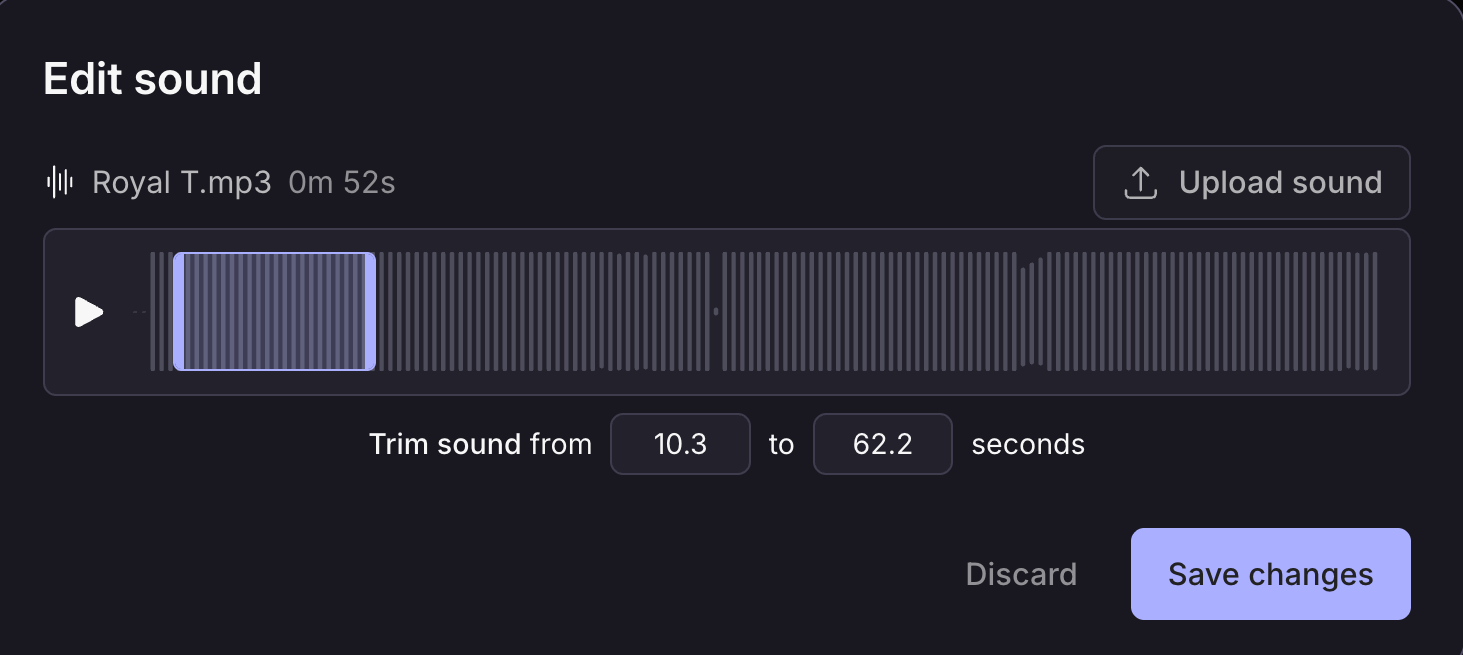
Click Trim and use the slider to select a different section of the current track. The video will re-sync to the new section automatically.
Swap the sound
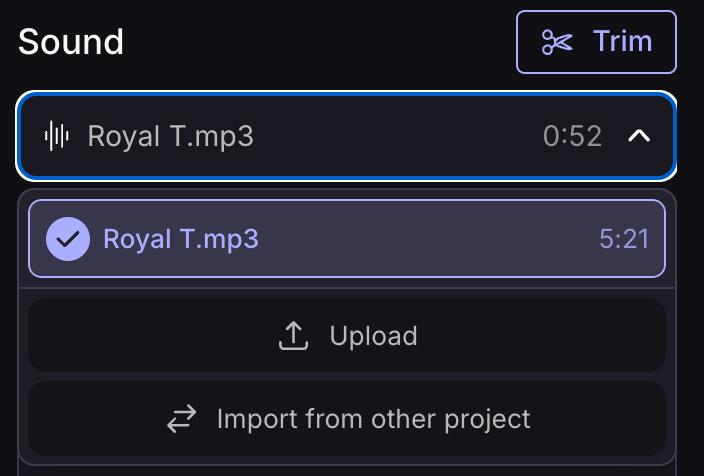
Click the track name to change the sound entirely. From there you can upload a new track, pick one already saved to the project, or import from another project. The video re-syncs to the new audio.
Adding Lyrics and Captions
Click the T button on the left to open text options.
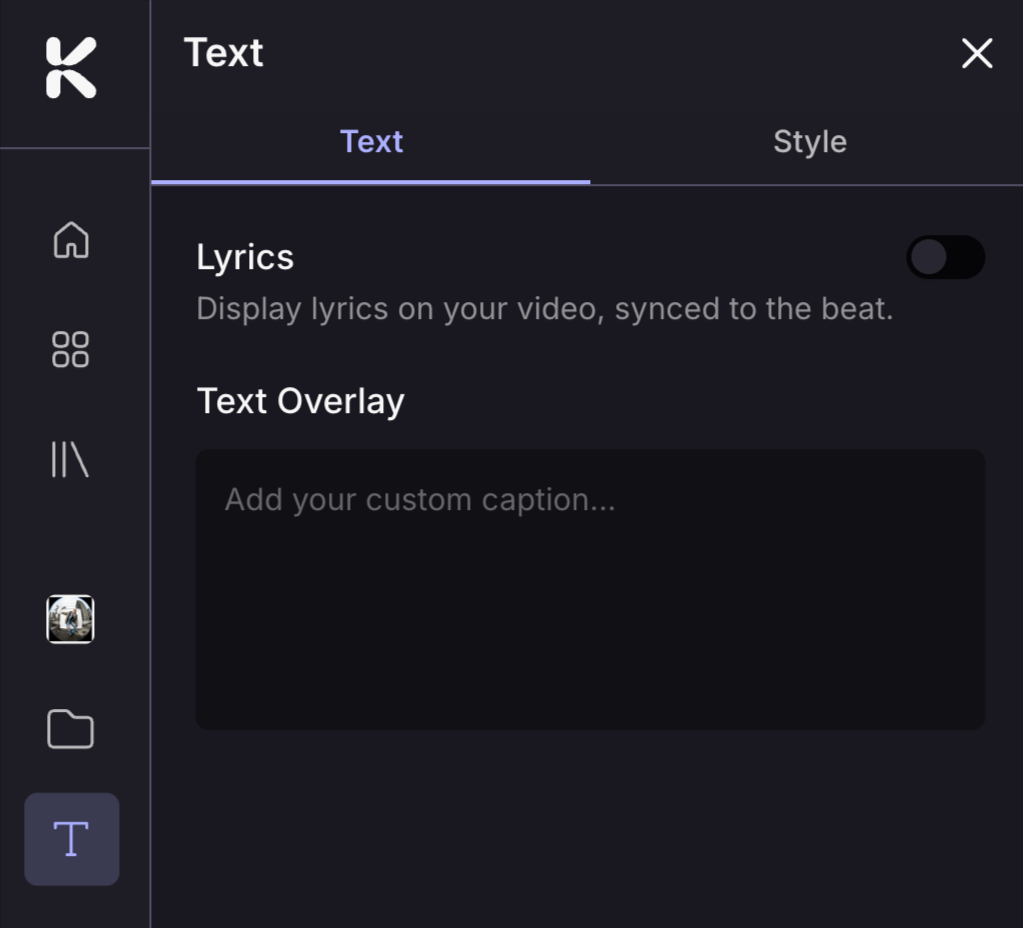
Auto-generated lyrics
Toggle Lyrics on to add auto-generated lyrics that sync to the beat. If a lyric isn't quite right, click on it in the side panel to edit.
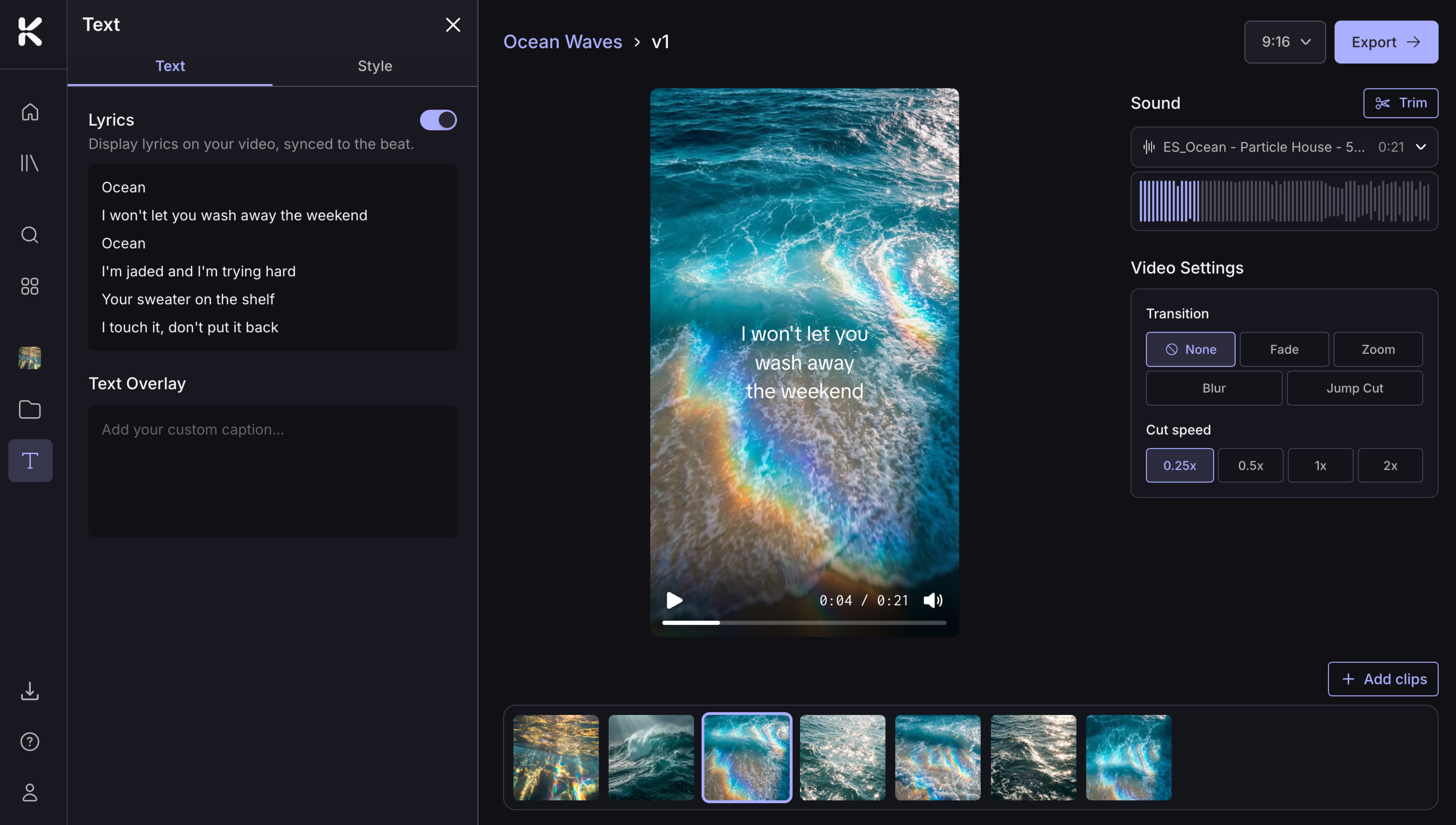
Custom captions
Add a custom caption with Text Overlay. Type whatever you want and position it anywhere on the screen.
Style your text
Click the Style button to adjust:
Font
Size
Color
Line spacing
Capitalization
Background
Outline
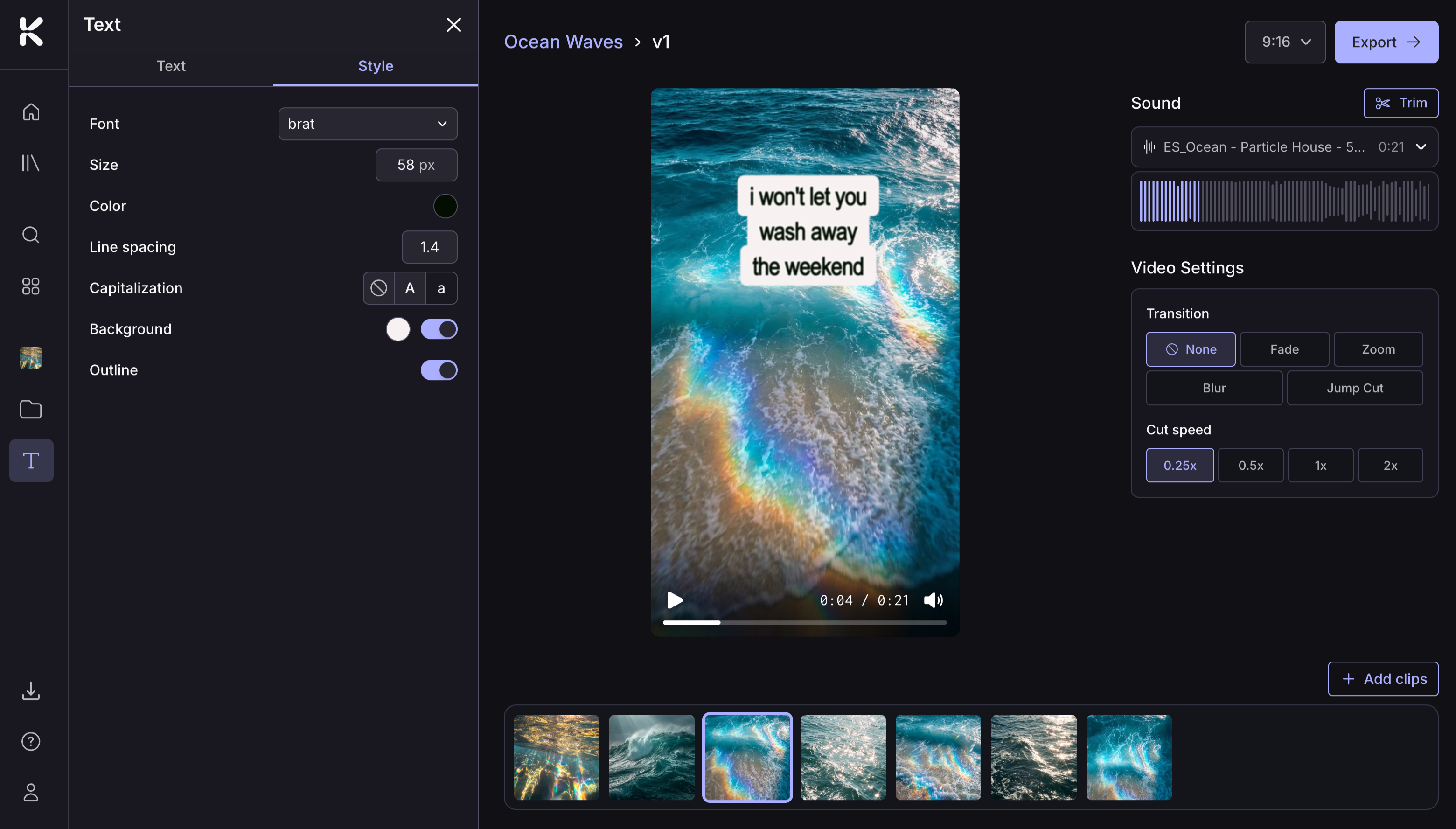
Click and drag the text box on the viewer to reposition it. Grab a corner of the text box to resize.
Saving your edits
Edits save automatically. Click Back to return to the Project Page when you're done.
FAQs
Do my edits save automatically?
Do my edits save automatically?
Yes. When you click Back to return to the Project Page, all edits are saved.
Can I edit auto-generated lyrics?
Can I edit auto-generated lyrics?
Yes. Click on a lyric in the side panel to edit the text. This will change the text without changing how it syncs to your audio.
Does editing a video cost credits?
Does editing a video cost credits?
No. Edits are free, so you can keep tweaking until you've nailed the look and feel before exporting.
Can I make changes without losing my original?
Can I make changes without losing my original?
Yes. Duplicate the video on the Project Page before editing, and you'll have the original to fall back on if you want to start fresh or compare versions.
What's the best transition style for music videos?
What's the best transition style for music videos?
It depends on the vibe. Hard cuts can work for aggressive or cinematic tracks. Fades suit smoother, melodic songs. Zooms and Jump Cuts add energy. It's worth testing a few.
Can I undo a change in Edit mode?
Can I undo a change in Edit mode?
There's currently no undo button. Edits happen in real time and save as you go, so to revert a change, you'll need to swap it back manually. If you want a safety net, duplicate the video before editing so you've got the original copy to fall back on.
Still need help? Ask the team