Getting Started with Kaiber Beat Sync
This quick guide covers how to get started creating with Kaiber Beat Sync: how projects work, how to generate your first batch of videos, and how to edit and export them ready to post in any platform.

Written By Christine Larsen
Last updated 4 months ago
What is Kaiber Beat Sync?
Beat Sync turns your sounds and visuals into beat-synced videos. Upload media, drop in a track, and Beat Sync does the rest. Zero prompting required.
It's built with Batch Create, so you can generate multiple videos at once from the same media, all synced to your audio. Same generation time whether you make 1 or 10.
Beat Sync is built for musicians and content creators who need volume. Fan accounts, lyric videos, promo clips, social posts. The kind of work that keeps you ahead of the algorithm.
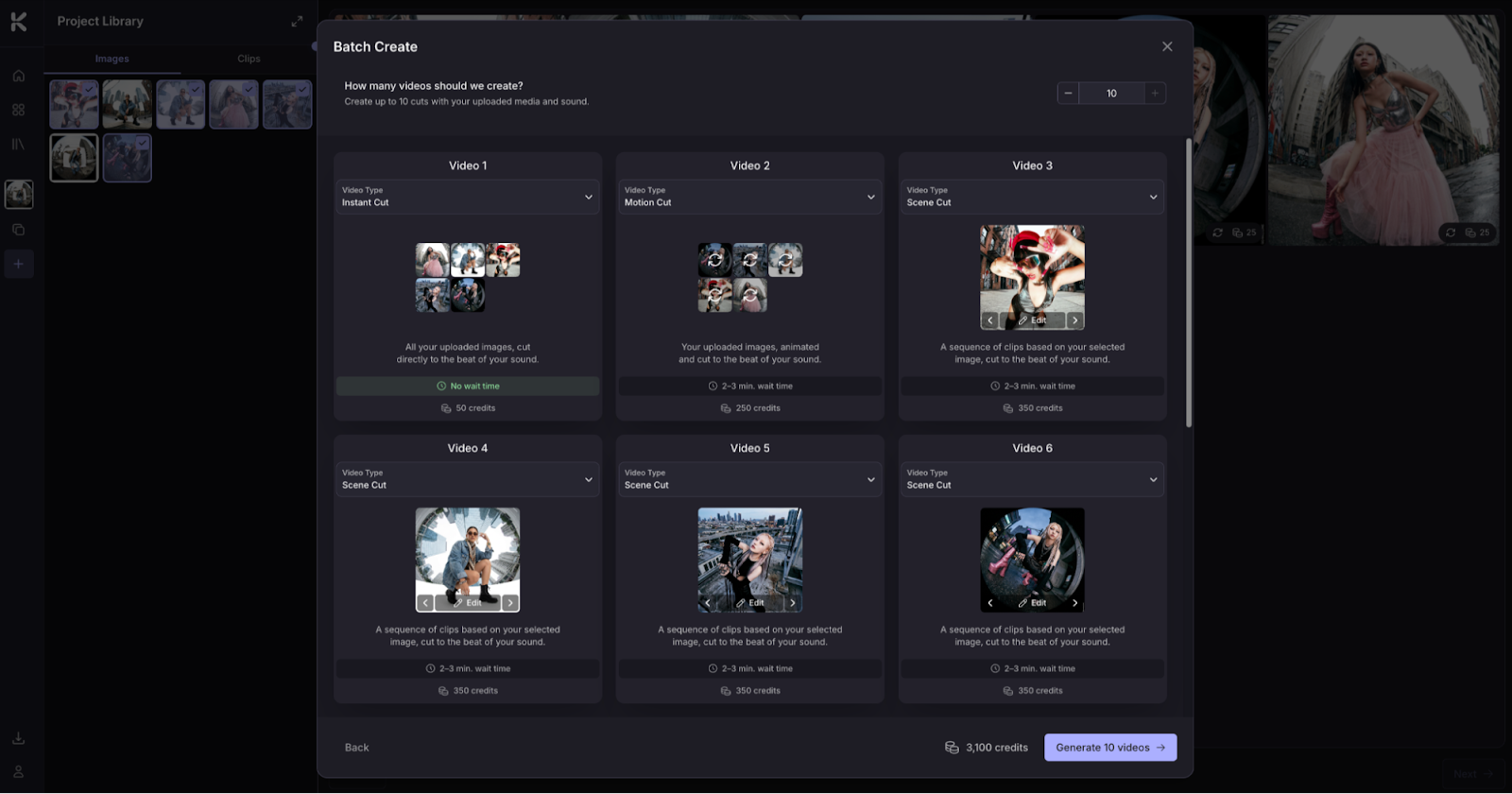
Creating your first batch of videos in Beat Sync
When you first open Beat Sync, click Make a video to start your project. Each project holds your uploaded media, your audio, and every video you generate from it.
Click Make a video to create a new project.
Upload your images or clips, or use Auto-Clip to slice a long video into shots.
Upload your sound and trim to the section you want to use.
Pick your aspect ratio: 9:16, 16:9, or 1:1.
Set your batch size. Pro plans can generate up to 10 videos per batch, Creator plans up to 2.
Click Generate.
Instant Cut and Shuffle Cut videos appear right away as they use your existing media. Motion Cut and Scene Cut videos take a couple of minutes as they generate new clips based on your selected media.
Editing and downloading your Beat Sync videos
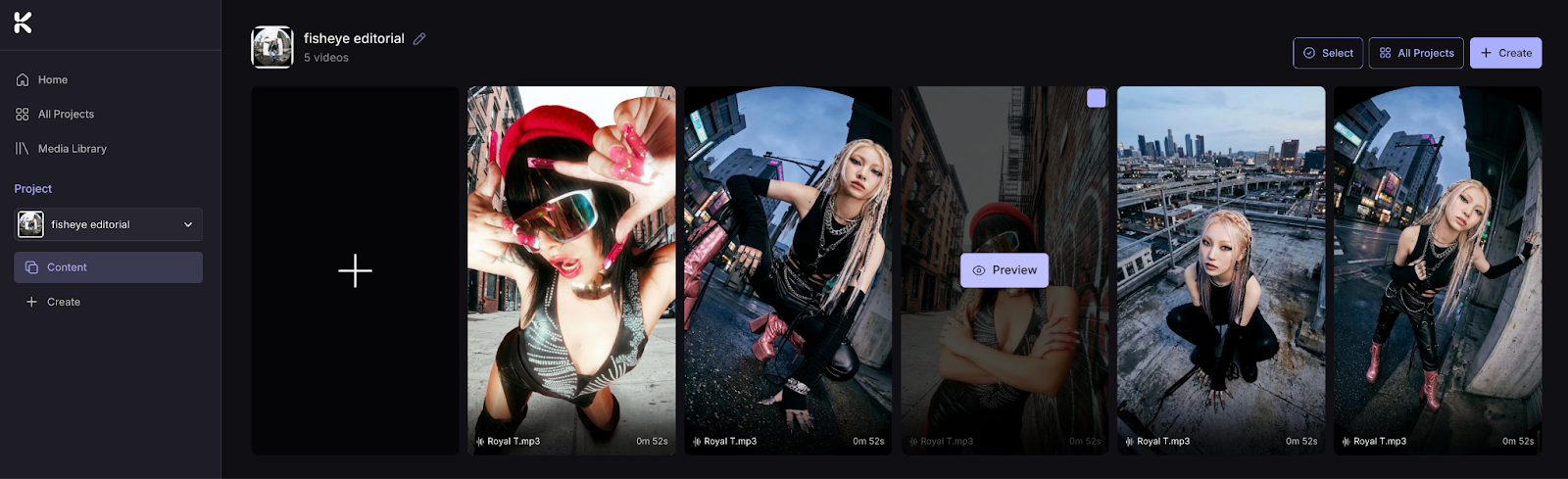
Hover over a video on the Project Page, and click Preview. From there you can watch the video, edit, swap the sound, add lyrics or captions, or export.
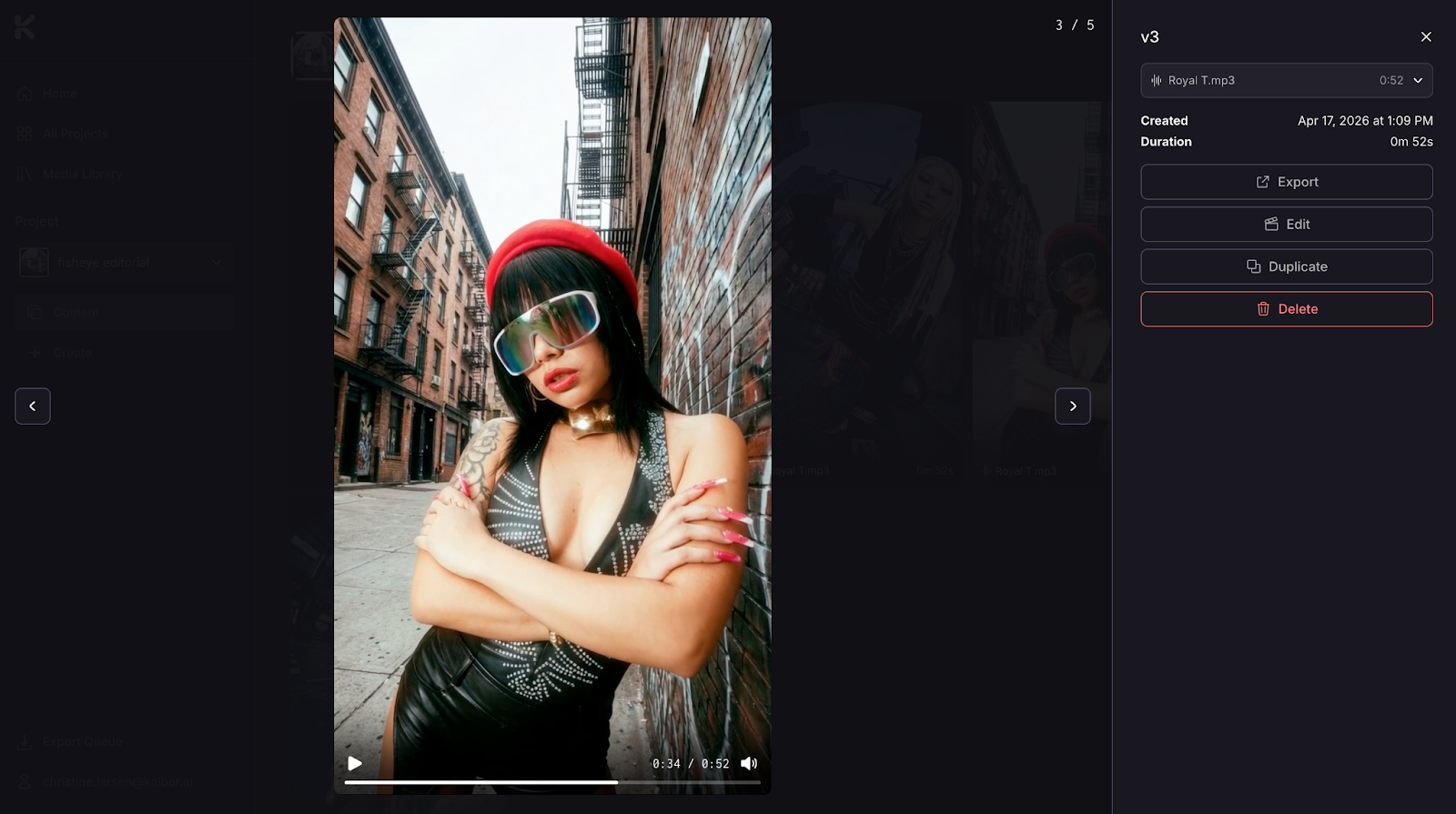
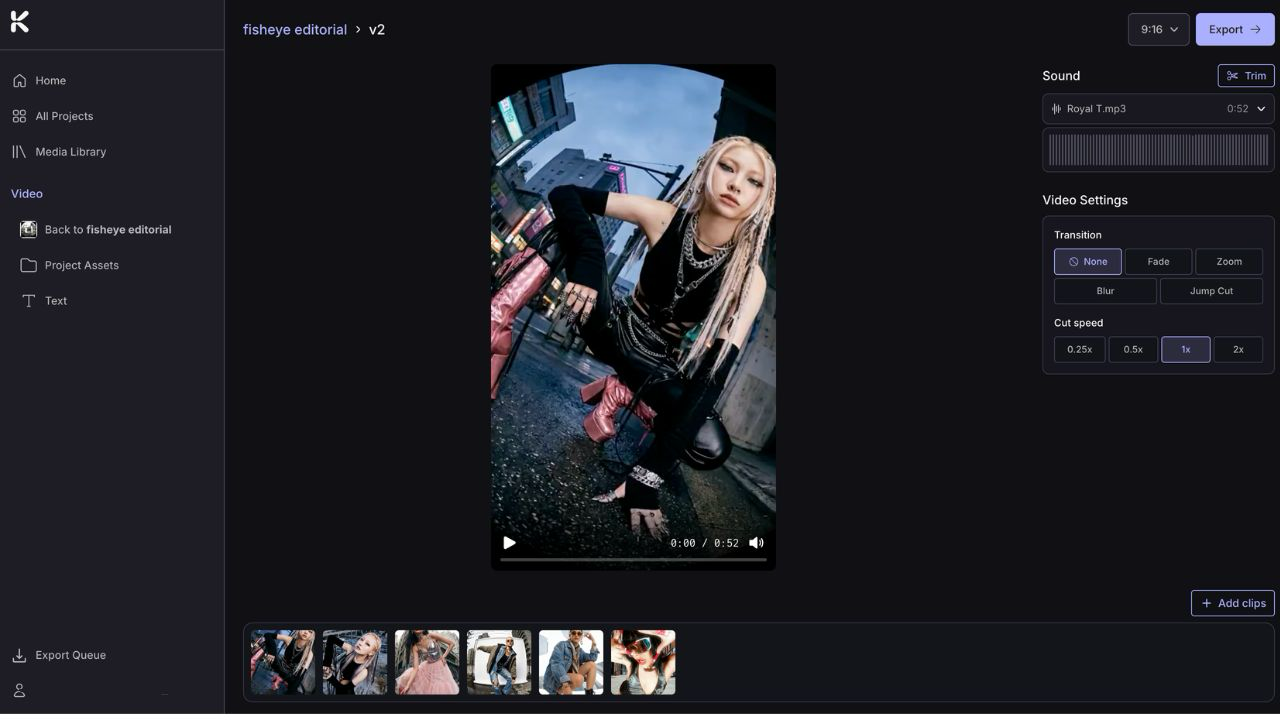
Edit opens the video in edit mode to rearrange clips, change transitions, adjust the cut speed, add text, re-trim audio or swap the music entirely. Edits save automatically when you head back to the Project Page.
Export lets you save a single video to your device. To export multiple videos at once, use Select on the Project Page to batch export them as a ZIP file.
Keep creating
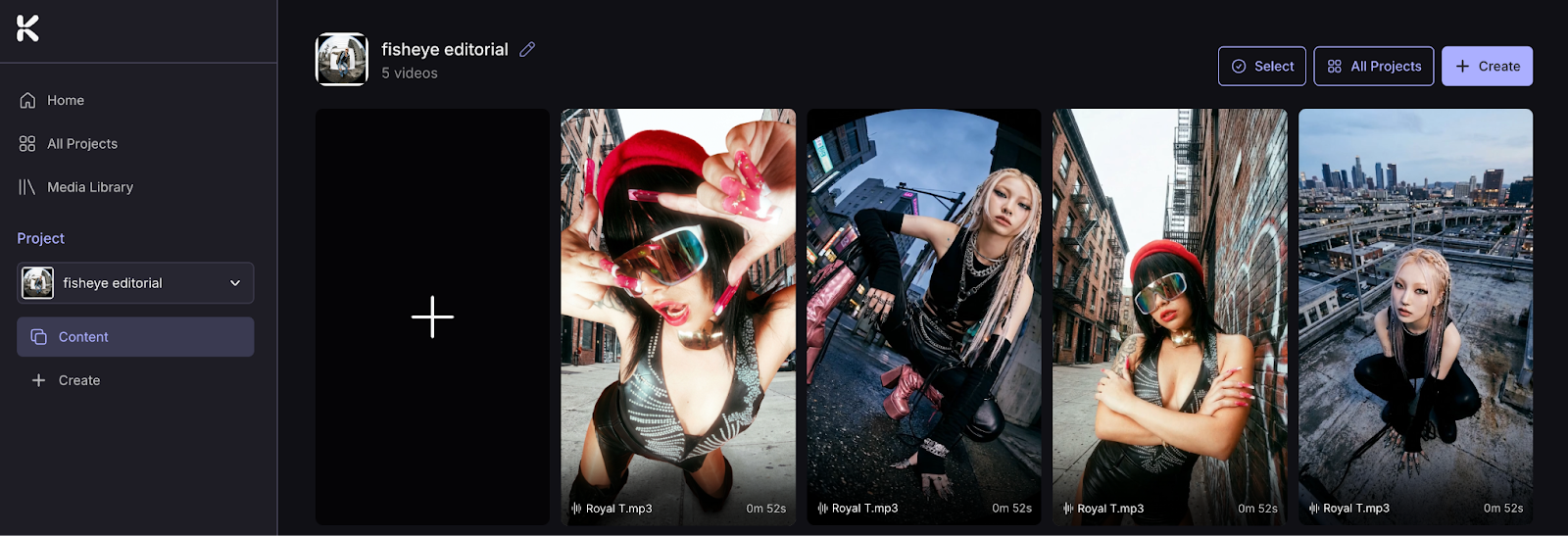
Create a new batch of videos in your project or start a new project.
Make another batch in the same project: Click the + on the blank video tile on the Project Page. From there, upload new media or select from what's already in your Project Library.
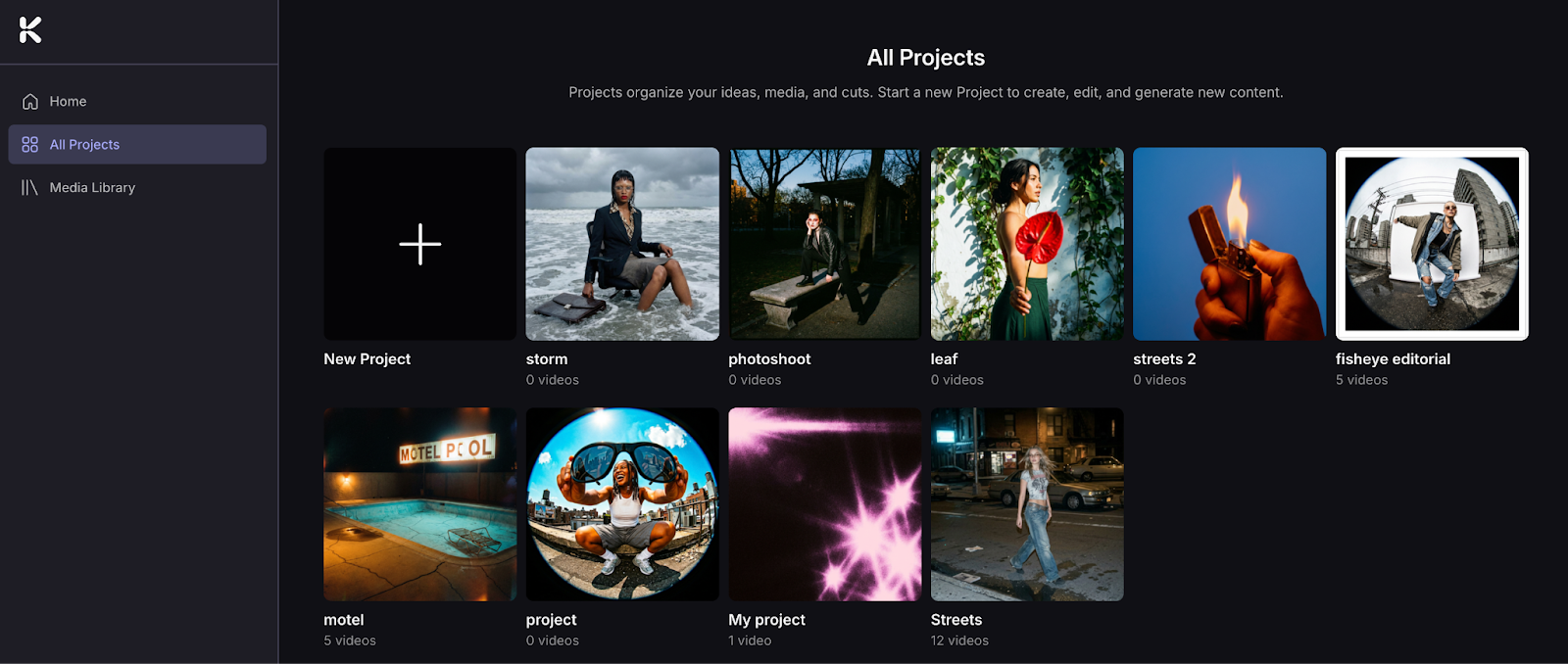
Start a new project: Click the All Projects icon on the toolbar on the left to go to the All Projects page. Click the + on the blank project tile to create a new project. You can create as many projects as you want.
How Beat Sync fits into the Kaiber suite
Everything you upload or generate in Beat Sync is saved to your Media Library, so it's available in Kaiber Canvas (for AI video, image, and audio generation) and Kaiber Video Editor (the timeline editor for layering and final touches). Move between the three as you need.
Ready to make something? Open Beat Sync, click Make a video and go.
FAQs
What's the difference between Kaiber Beat Sync Batch and making videos one at a time?
What's the difference between Kaiber Beat Sync Batch and making videos one at a time?
Speed and volume. Beat Sync generates up to 10 variations at once, in the same time it'd take to make one.
Do I need to write prompts for each video?
Do I need to write prompts for each video?
No prompts needed. Upload your media and sound, choose a few settings, and Beat Sync handles the rest. Videos auto-generate synced to your audio.
What gets saved in a project?
What gets saved in a project?
Everything. Your uploaded images, clips, and sounds live in the Media Library. Every video you generate is saved too, so you can come back later, create more batches, or re-edit videos without starting from scratch.
Can I work on multiple projects at once?
Can I work on multiple projects at once?
Yes. Switch between projects anytime from the All Projects page. Each project is independent, so your media and videos don't overlap.
Was this helpful?
Still need help? Ask the team